Multiple payment methods
Unified QR (12+ services), cash, cards via a connected POS terminal, and split payments.

Rahmat POS / Checkout for Windows
The Windows checkout software accepts payments, prints fiscal receipts, keeps inventory records and works with accounting systems. For shops, cafés, restaurants and pharmacies.
01 / Why it works
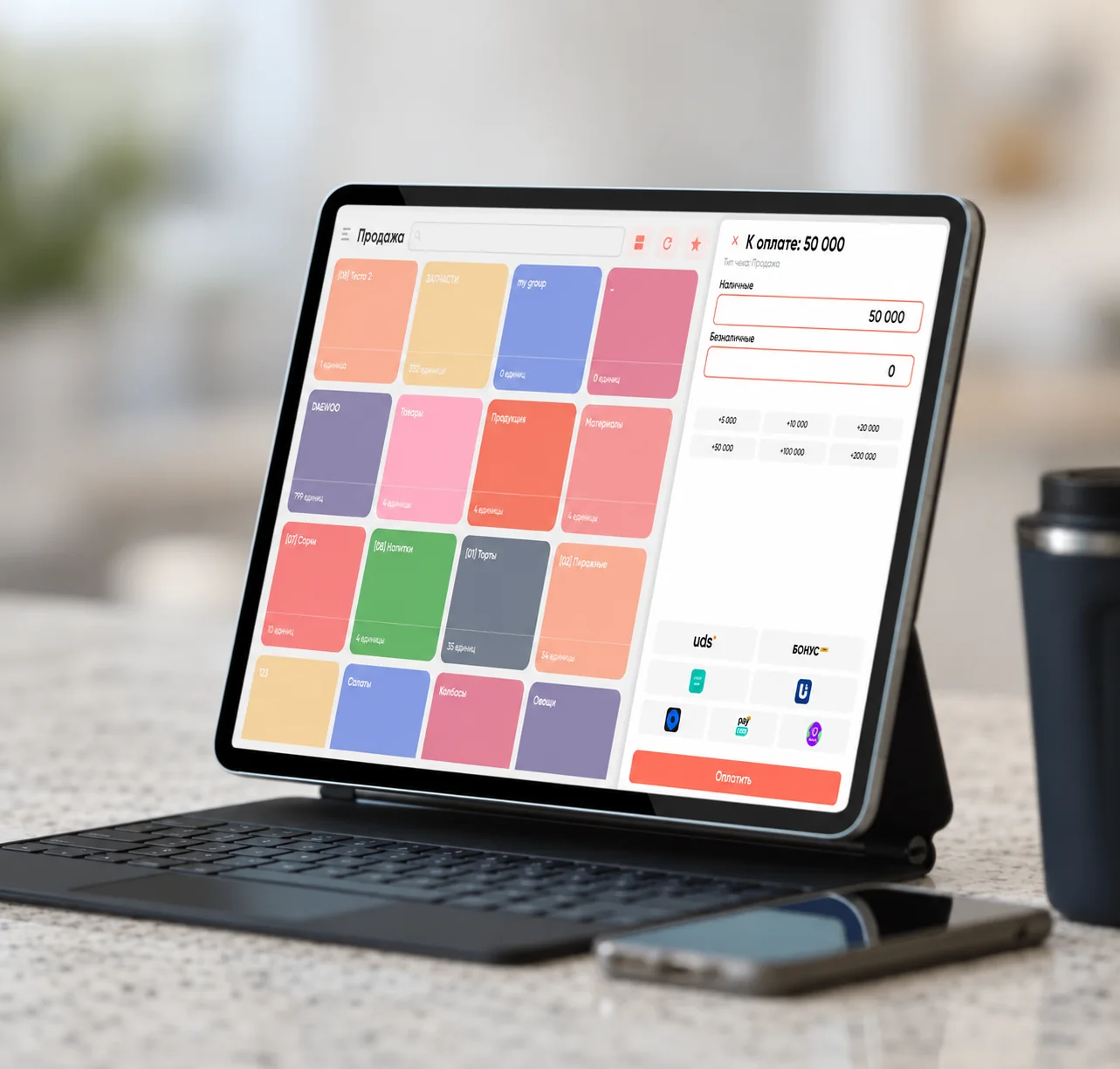
A Windows computer, laptop or tablet becomes a cashier workstation.
Unified QR (12+ services), cash, cards via a connected POS terminal, and split payments.
The software meets State Tax Committee requirements and is listed in the official register.
The register supports digital product marking. Items are added to the receipt with a barcode scanner.
Integrations with accounting systems and an open API to connect the register to other software.
Products, stock, IKPU codes and sales analytics in one app.
X and Z reports, refunds by the receipt’s fiscal sign and a full receipt log.
The SUNMI P3 payment terminal connects to the virtual register and accepts cards. The terminal service plan is UZS 0 a month.
02 / Cashier workstation
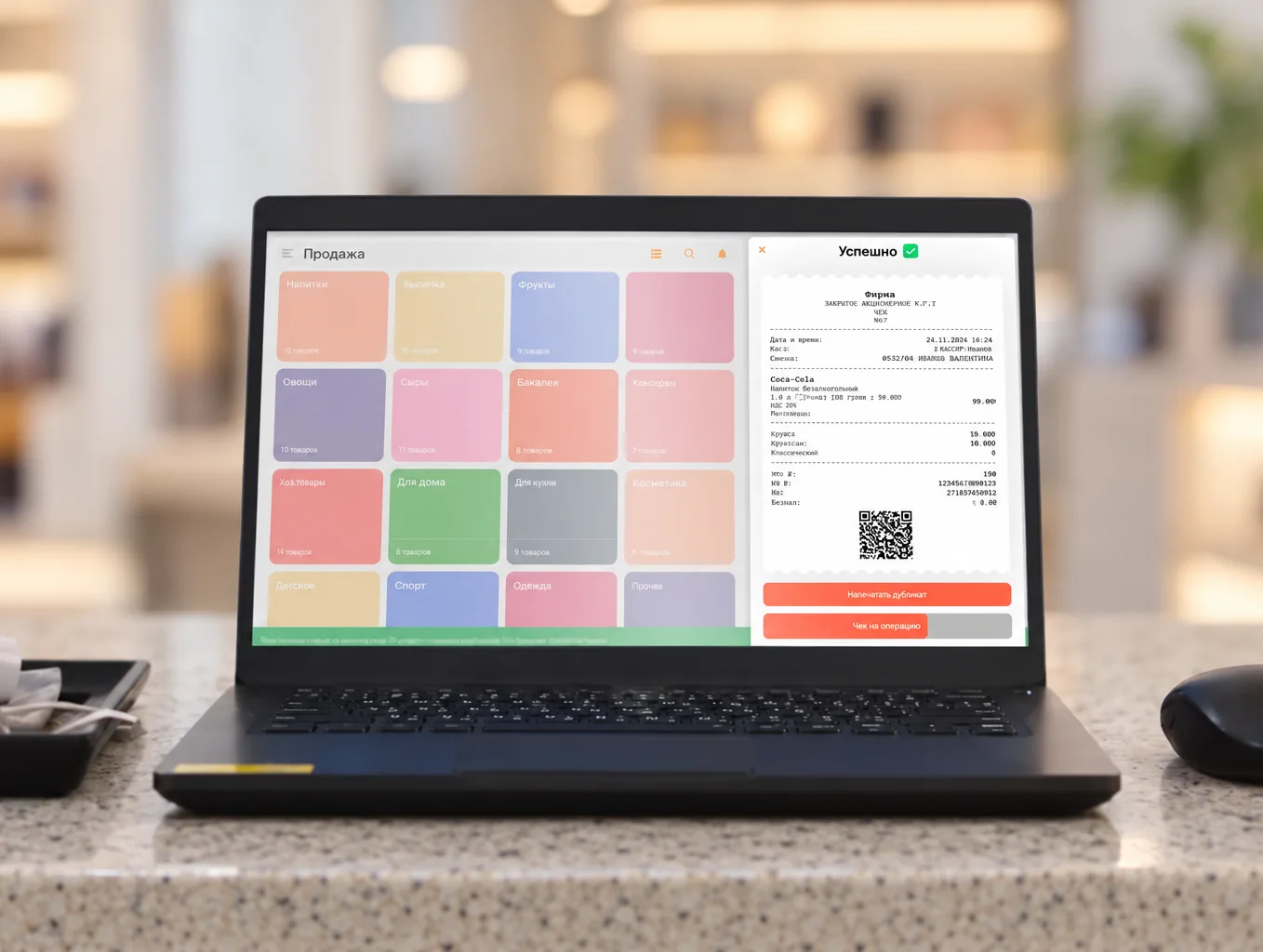
The main screen shows a tiled product catalogue and the current receipt. Items are added from the catalogue, with a scanner or by barcode search. No separate scanner software is needed.
In the payment window, the cashier enters a cash amount, a cashless amount or both. The register creates a fiscal receipt, sends it to the fiscal data operator (OFD) and prints it.
03 / Inventory and reports
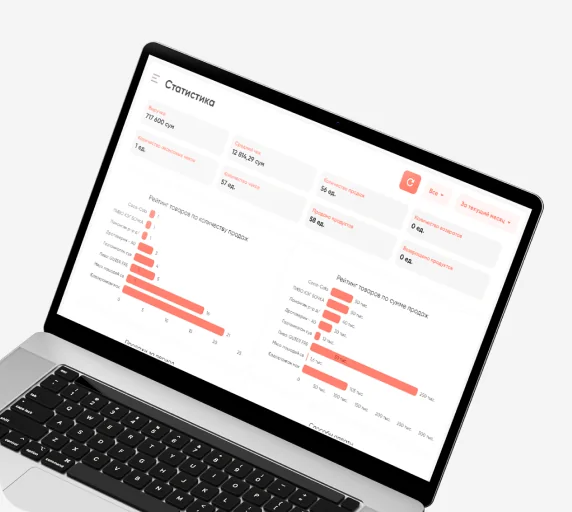
The navigation menu holds products, stock, counterparties, IKPU codes, sales analytics, the receipt log and refunds.
A shift opens and closes with one click. At closing, the register creates a Z report and sends it to the OFD. An X report can be printed at any time during the shift.
04 / Pricing
The virtual register and the payment terminal are billed on a monthly plan. The terminal is needed to accept cards.
Runs on a Windows laptop, PC or tablet.
Service plan
123 600 UZS / month
For HUMO, Visa, Mastercard and UnionPay cards.
Service plan
0 UZS / month
Monthly service fees are shown. A SUNMI P3-based terminal costs UZS 990,000, paid once. All plans are on the Pricing page.
05 / System requirements
Minimum requirements for the cashier’s workstation, from the user guide.
06 / Getting started
The register can be installed independently or on request. On request, a Rahmat specialist installs and sets up the register remotely.
The USB module with a certificate sends receipts to the OFD. Without it, the register cannot run fiscal operations. The module is sold at the Rahmat office.
The Windows installer is run with administrator rights. Installation takes no more than two minutes.
The outlet and cashiers are added in the hub.rhmt.uz web account. Then the module is plugged into a USB port, and the cashier signs in to the app.
07 / Downloads
The installer, the user guide, the web account for setup and official documents.
08 / Questions and answers
Other questions — on 1865 or in the support chat.
1865 Support chatOn laptops, computers and tablets running Windows 7 or later. It is a register for shops, restaurants, pharmacies and other businesses.
The installer is on this page. After a request, a Rahmat specialist contacts the client, then installs and sets up the register remotely.
Yes. Under State Tax Committee rules, the register runs fiscal operations only with a connected fiscal module — a USB module with a certificate. The module is sold at the Rahmat office.
Yes. The register works with digital product marking. The software is listed in the official register and meets State Tax Committee requirements.
Unified QR payments (12+ services), cash and split payments. Cards are accepted through a connected payment terminal.
Service is UZS 123,600 a month. Additional one-off services and payment acceptance terms are confirmed during setup.
In the user guide (PDF, in Russian): installation, shifts, sales, refunds, settings and fixes for common errors.
Connecting Rahmat POS
A Rahmat specialist sets up the virtual register for the outlet’s format and helps get sales started.